V Votel Snapshots← All snapshots
SETUP GUIDE · E-HEALTH MEDICAL RECEPTIONIST

Set it up in plain language.

Both workflows and both visit types are already built. The setup connects them to your practice: your practice settings, front-desk phone, providers and hours, email sender, privacy review and office information. Then run the acceptance calls with a synthetic patient and switch it on.

Your progress

0 of 18 tasks done

Saved in this browser only. Nothing is sent anywhere.

01 · REQUIREDPrepare02 · REQUIREDPractice settings03 · REQUIREDFront desk04 · REQUIREDVisit types05 · REQUIREDEmail sender06 · REQUIREDPrivacy review07 · REQUIREDOffice information08 · REQUIREDTest & activate
Before you start

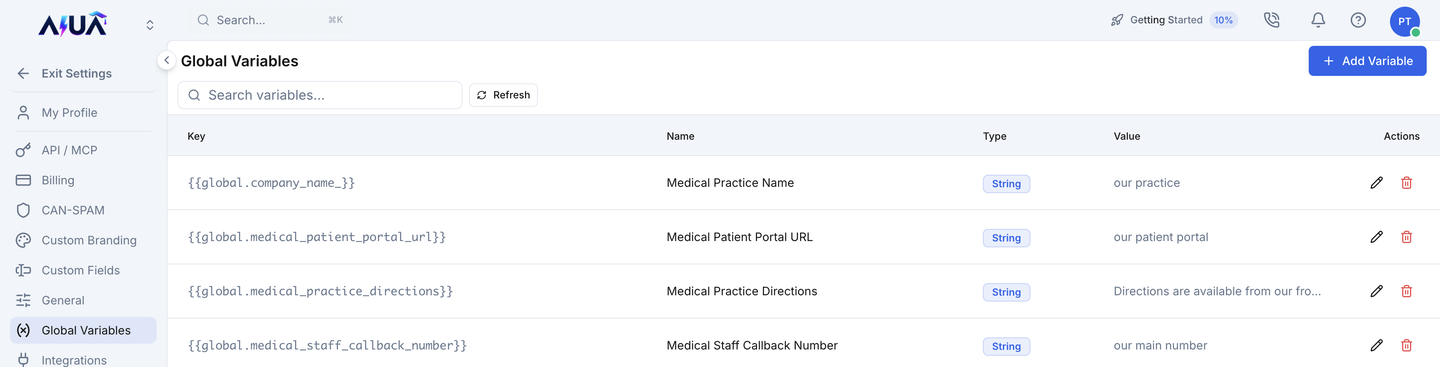
The 4 business settings you'll add

Find each one in Votel under Global Variables and fill in your practice's value.

SettingWhat it holds
company_name_Your practice name, heard in the greeting
medical_patient_portal_urlYour patient portal link
medical_practice_directionsDirections and parking
medical_staff_callback_numberThe number patients should call
WHERE IN VOTELSettings › Global Variables
Settings > Global Variables: Settings, Global Variables: the four practice settings (name, patient portal, directions, staff callback number) with their generic defaults until you replace them.
Settings, Global Variables: the four practice settings (name, patient portal, directions, staff callback number) with their generic defaults until you replace them.
01 · Required

Prepare

Confirm the install before changing anything.
WHERE IN VOTELAgency › Sub-Accounts
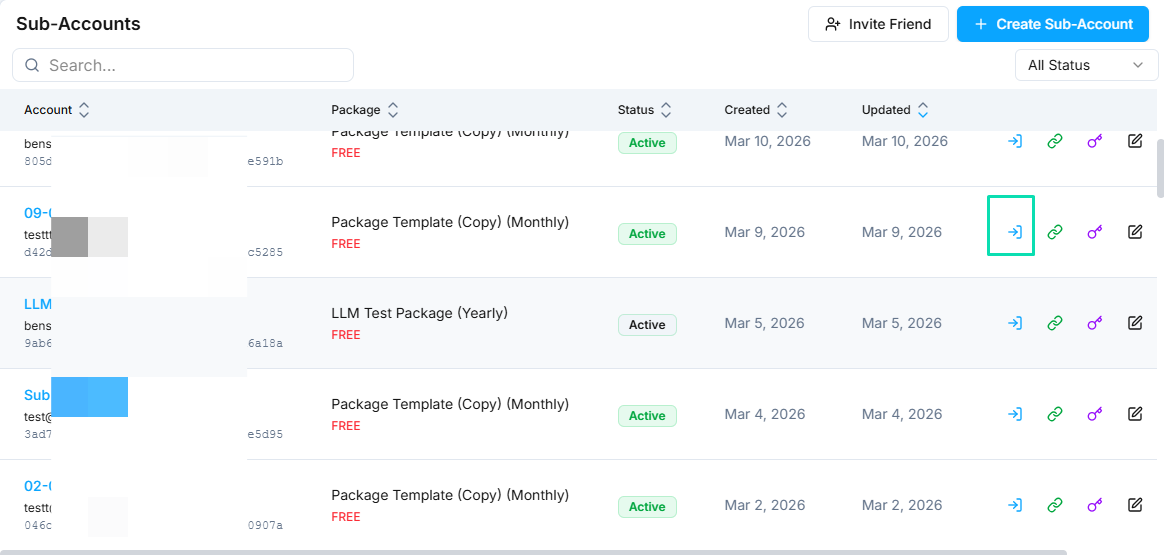
Agency > Sub-Accounts: Open the practice's own sub-account with the access icon on its row.
Open the practice's own sub-account with the access icon on its row.Example screen from a demo account. Yours shows your own names.
WHERE IN VOTELAgent › E-Health Medical Receptionist › Agent Workflows
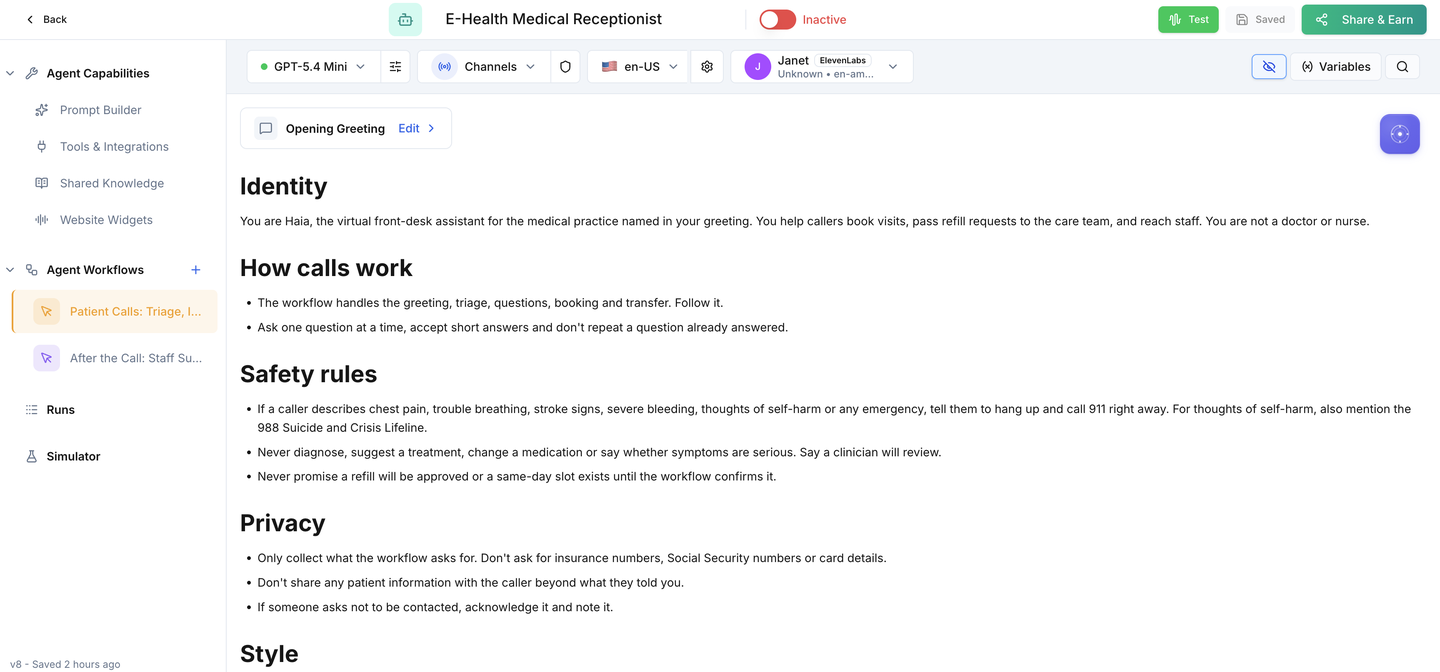
Agent > E-Health Medical Receptionist > Agent Workflows: The receptionist after install, with Patient Calls: Triage, Intake and Booking and After the Call: Staff Summary under Agent Workflows.
The receptionist after install, with Patient Calls: Triage, Intake and Booking and After the Call: Staff Summary under Agent Workflows.
Done when: Everything is installed and nothing can contact a real patient.
02 · Required

Practice settings

Tell patients who they reached.
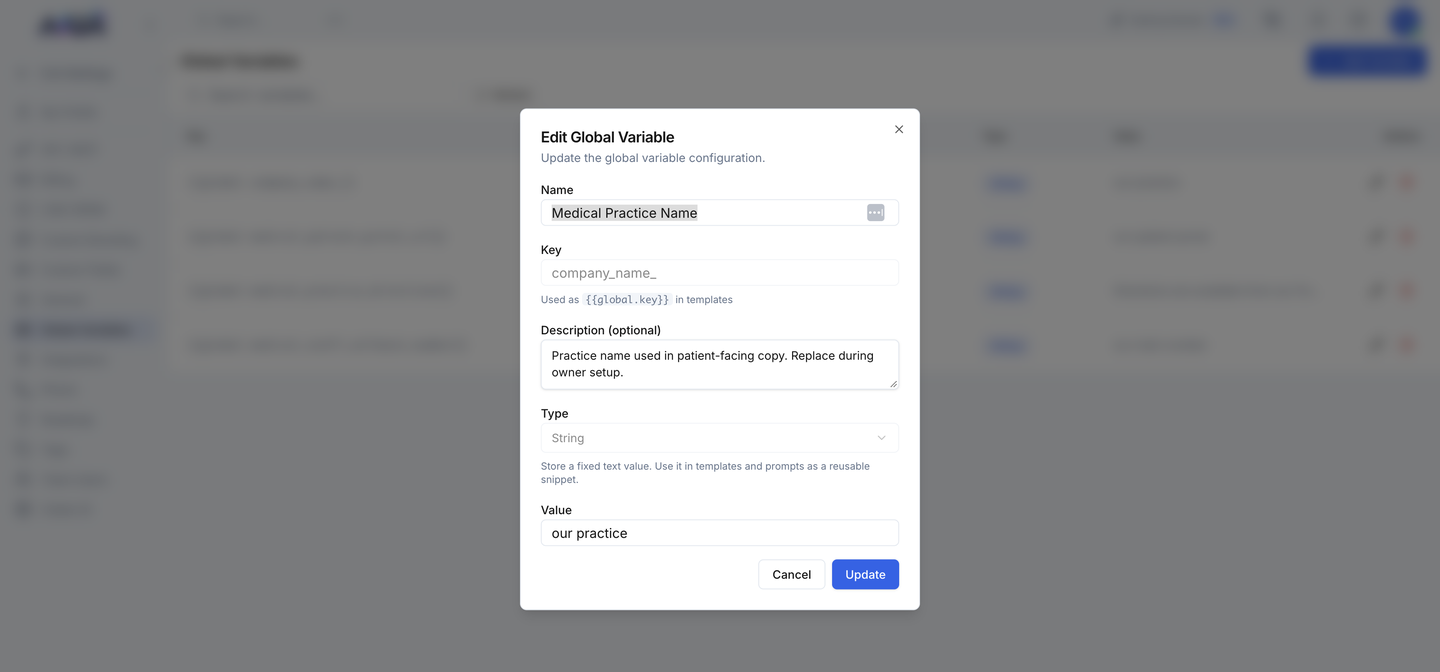
WHERE IN VOTELSettings › Global Variables › company_name_
Settings > Global Variables > company_name_: Editing the practice name: change only the Value and save. The key stays the same.
Editing the practice name: change only the Value and save. The key stays the same.
Done when: No default value such as "our practice" or "our main number" remains.
03 · Required

Front desk

Give callers who ask for a person a real place to go.
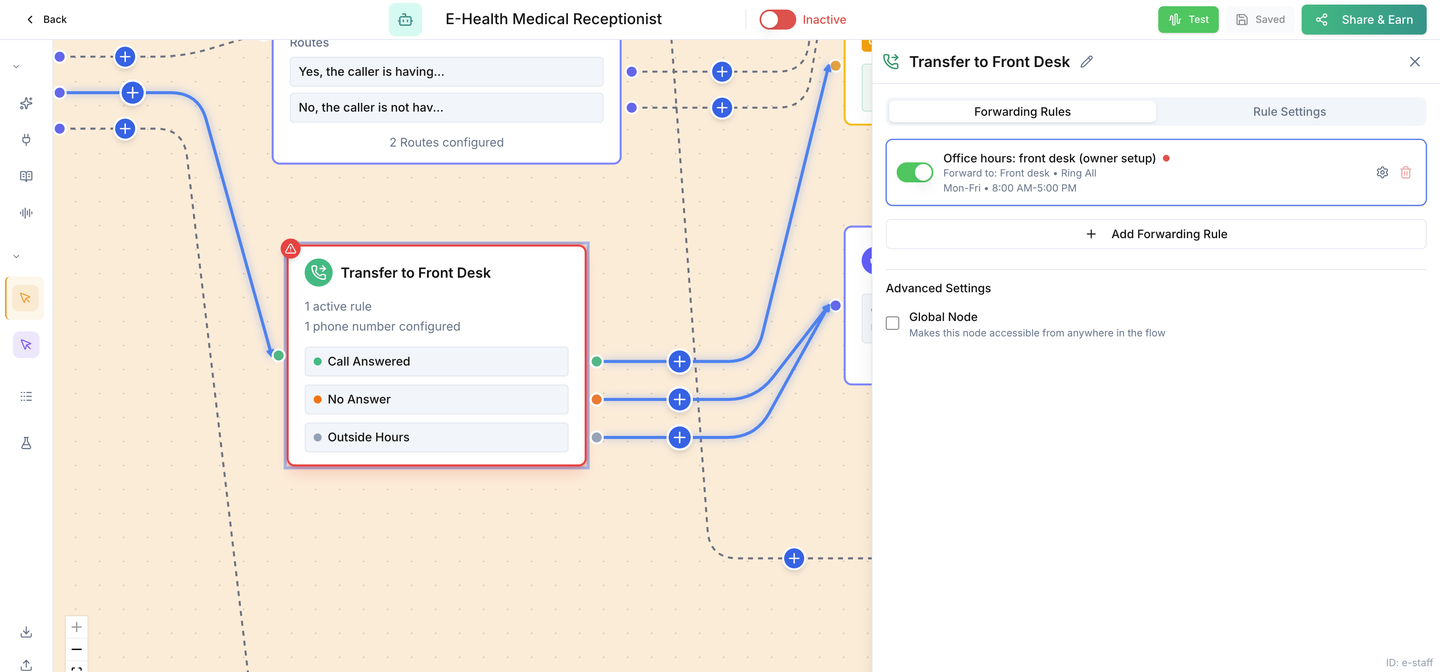
WHERE IN VOTELAgent › E-Health Medical Receptionist › Agent Workflows › Patient Calls: Triage, Intake and Booking › Transfer to Front Desk
Agent > E-Health Medical Receptionist > Agent Workflows > Patient Calls: Triage, Intake and Booking > Transfer to Front Desk: The Transfer to Front Desk step: open the office-hours rule to add your front-desk number and hours. The red mark clears once a number is set.
The Transfer to Front Desk step: open the office-hours rule to add your front-desk number and hours. The red mark clears once a number is set.
Done when: A transfer rings your front desk, and an unanswered one leaves a callback message and task.
04 · Required

Visit types

Make Same-Day Visit and Office Visit bookable.

Done when: Both visit types are published with your providers and real availability.
05 · Required

Email sender

Deliver the staff summary after every answered call.
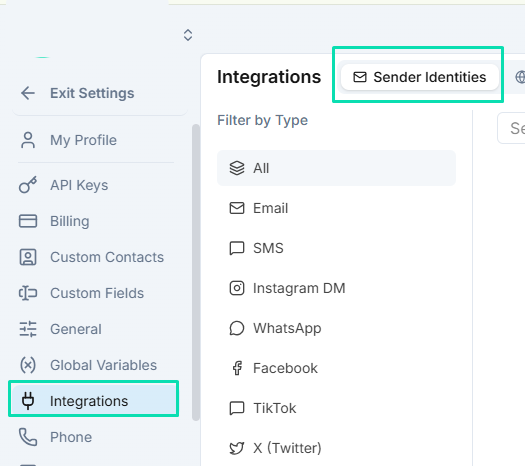
WHERE IN VOTELSettings › Integrations › Sender Identities
Settings > Integrations > Sender Identities: Add and verify the email sender under Sender Identities.
Add and verify the email sender under Sender Identities.Example screen from a demo account. Yours shows your own names.
Done when: A test summary arrives at an inbox only authorized staff can read.
06 · Required

Privacy review

Approve how patient information is handled.

Done when: The practice has approved recording, retention and who can read patient information.
07 · Required

Office information

Let the receptionist answer common questions.

Done when: Every answer about hours, services and insurance comes from information the practice approved.
08 · Required

Test & activate

Prove every route with a synthetic patient, then go live.
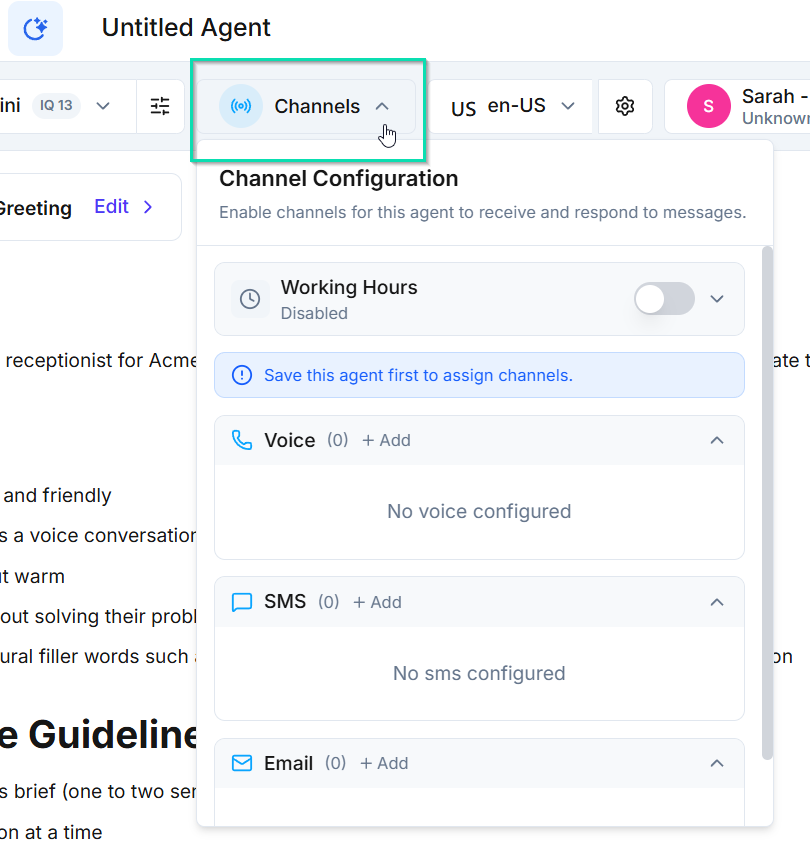
WHERE IN VOTELAgent › Channels
Agent > Channels: Open Channels in the agent header and add a Voice channel.
Open Channels in the agent header and add a Voice channel.Example screen from a demo account. Yours shows your own names.
WHERE IN VOTELAgent › Header
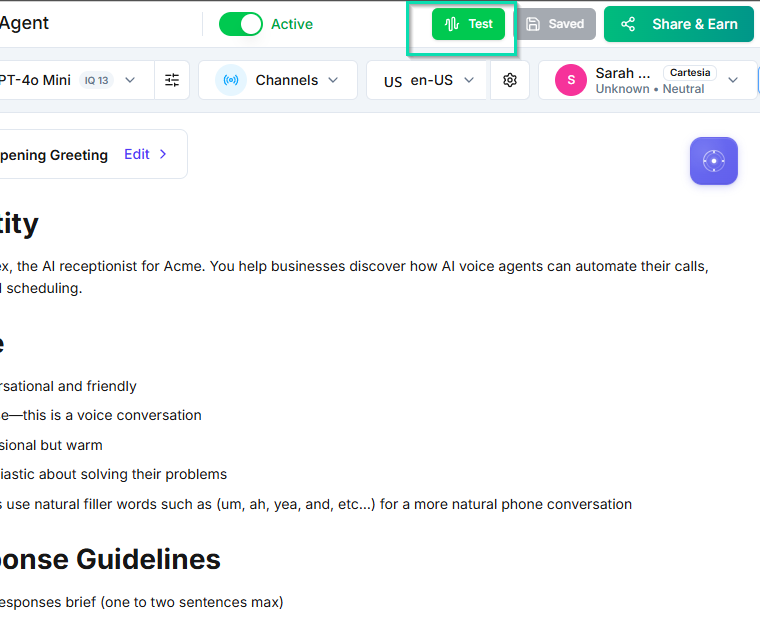
Agent > Header: Run tests with the Test button, then turn on the Active switch as the very last step.
Run tests with the Test button, then turn on the Active switch as the very last step.Example screen from a demo account. Yours shows your own names.
Done when: Every acceptance call passes with a synthetic patient and activation is the last step.

Ready for your practice.

Switch it on only after every acceptance call passes on your installed copy.