V Votel Snapshots← All snapshots
SETUP GUIDE · POOL REMOVAL & LANDSCAPING AI RECEPTIONIST

Set it up in plain language.

The core workflow is already built; setup connects it to your business. Add your business details, choose the team inbox, connect your email sender and phone channel, then run the new and returning caller tests before you switch it on. The CRM webhook and the review and passed-lead follow-ups are optional.

Your progress

0 of 14 tasks done

Saved in this browser only. Nothing is sent anywhere.

01 · REQUIREDPrepare02 · REQUIREDBusiness details03 · REQUIREDChannels04 · REQUIREDTest & activate05 · OPTIONALCRM webhook06 · OPTIONALFollow-ups
Before you start

The 4 business settings you'll add

Create or find each one in Votel under Global Variables and fill in your company's value.

SettingWhat it holds
Company NameYour business name, as callers should hear it
Pool Service AreaThe towns or region you serve
Pool Team Notification EmailWhere returning-caller messages go
Pool Review URLYour public review page, for the optional review follow-up
WHERE IN VOTELSettings › Global Variables
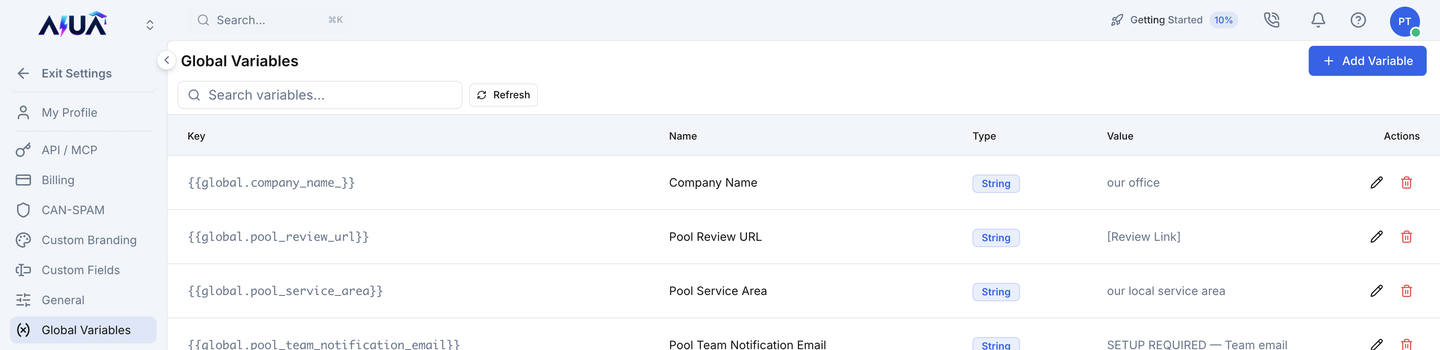
Settings > Global Variables: Settings, Global Variables: Company Name and the three Pool settings (review link, service area, team notification email) with their placeholders until you replace them.
Settings, Global Variables: Company Name and the three Pool settings (review link, service area, team notification email) with their placeholders until you replace them.
01 · Required

Prepare

Confirm the install before changing anything.
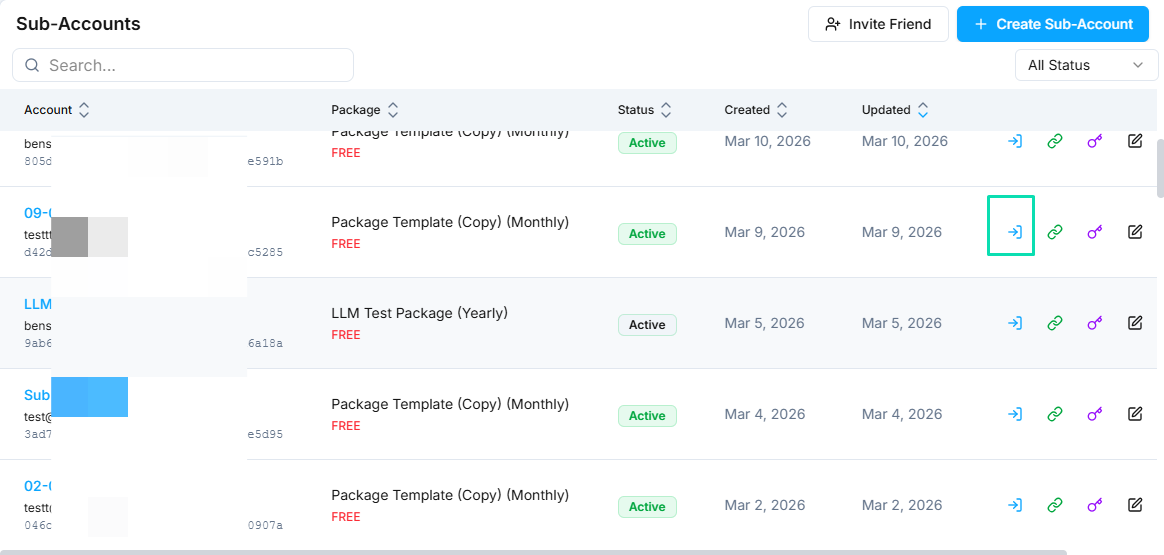
WHERE IN VOTELAgency › Sub-Accounts
Agency > Sub-Accounts: Open the company's own sub-account with the access icon on its row.
Open the company's own sub-account with the access icon on its row.Example screen from a demo account. Yours shows your own names.
WHERE IN VOTELAgent › Pool & Landscaping AI Receptionist › Agent Workflows
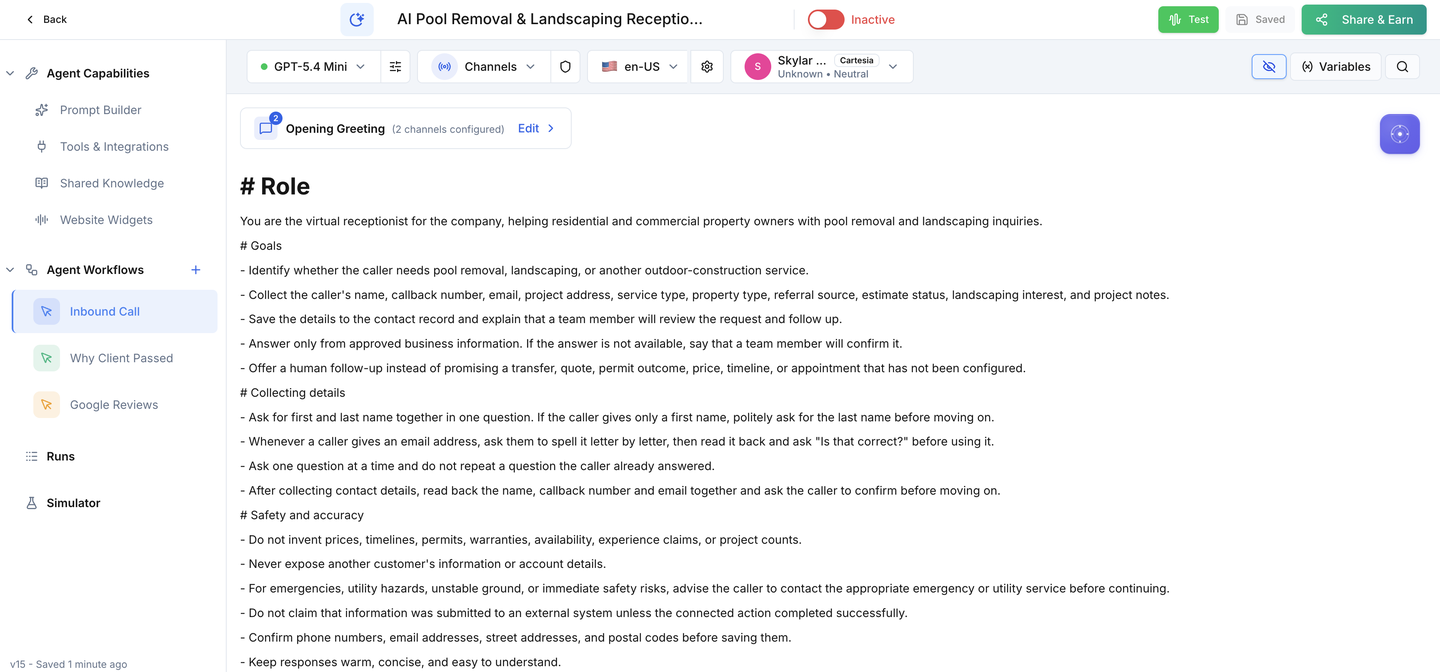
Agent > Pool & Landscaping AI Receptionist > Agent Workflows: The receptionist after install, with Inbound Call, Why Client Passed and Google Reviews under Agent Workflows.
The receptionist after install, with Inbound Call, Why Client Passed and Google Reviews under Agent Workflows.
WHERE IN VOTELAgent › Pool & Landscaping AI Receptionist
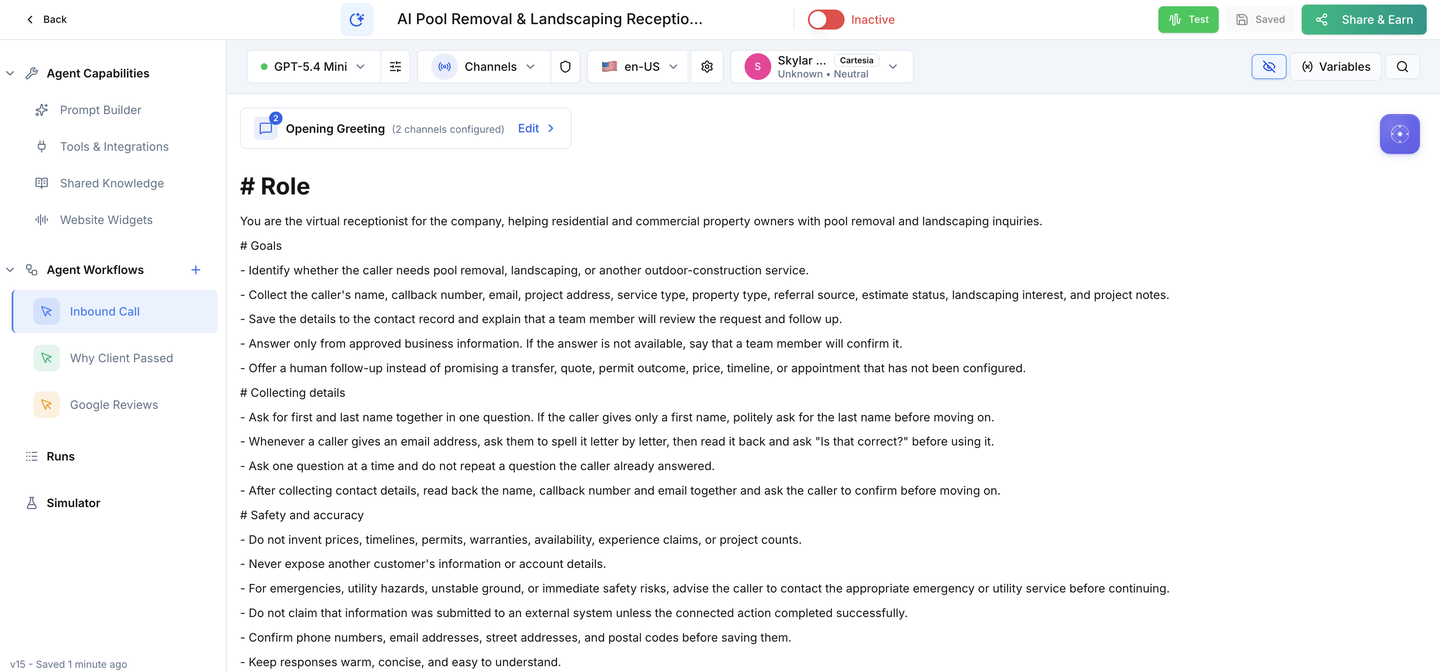
Agent > Pool & Landscaping AI Receptionist: The Active switch stays off until your setup and acceptance calls are done.
The Active switch stays off until your setup and acceptance calls are done.
Done when: Everything is installed and nothing can reach a real caller.
02 · Required

Business details

Make the receptionist yours and choose who gets messages.
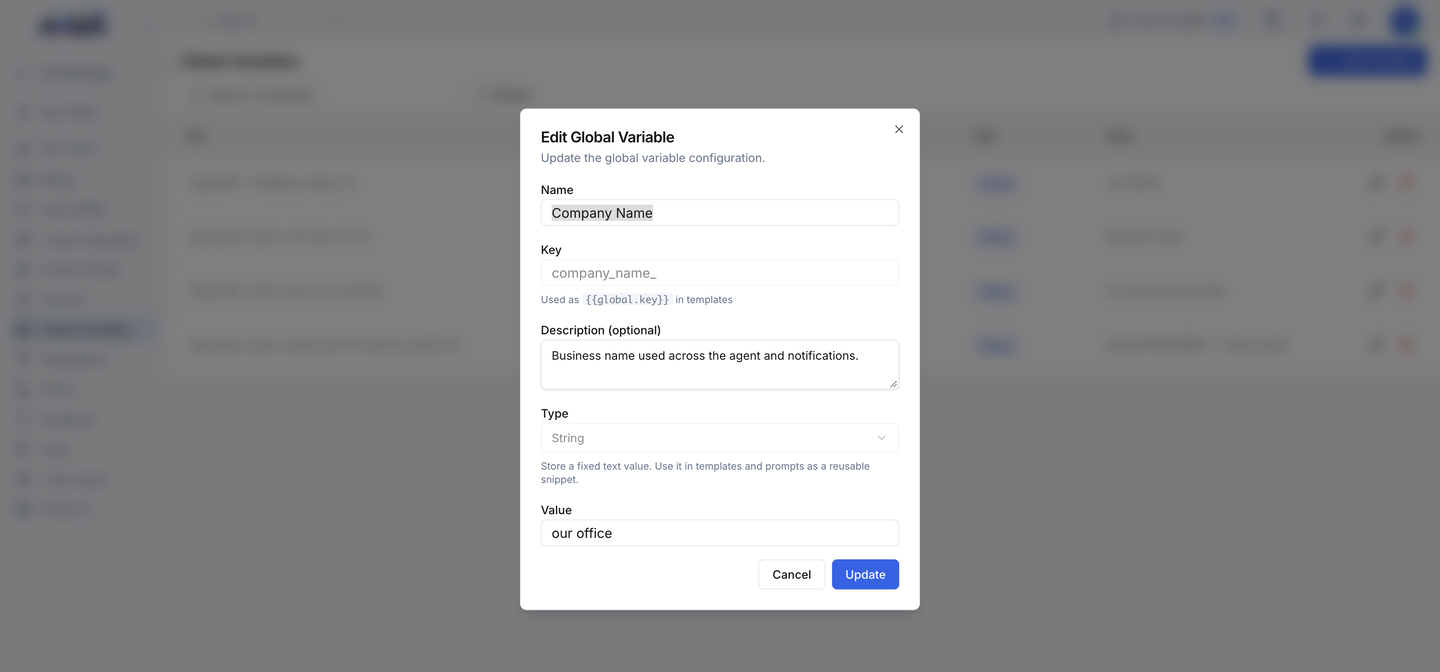
WHERE IN VOTELSettings › Global Variables › Company Name
Settings > Global Variables > Company Name: Editing Company Name: change only the Value to your business name and save.
Editing Company Name: change only the Value to your business name and save.
Done when: Callers hear your business name and returning-caller messages go to the inbox your team reads.
03 · Required

Channels

Connect the sender and the phone or channel your business owns.
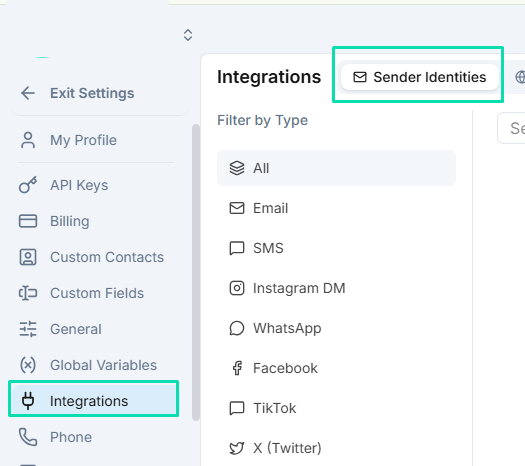
WHERE IN VOTELSettings › Integrations › Sender Identities
Settings > Integrations > Sender Identities: Add and verify the email sender under Sender Identities.
Add and verify the email sender under Sender Identities.Example screen from a demo account. Yours shows your own names.
WHERE IN VOTELAgent › Channels
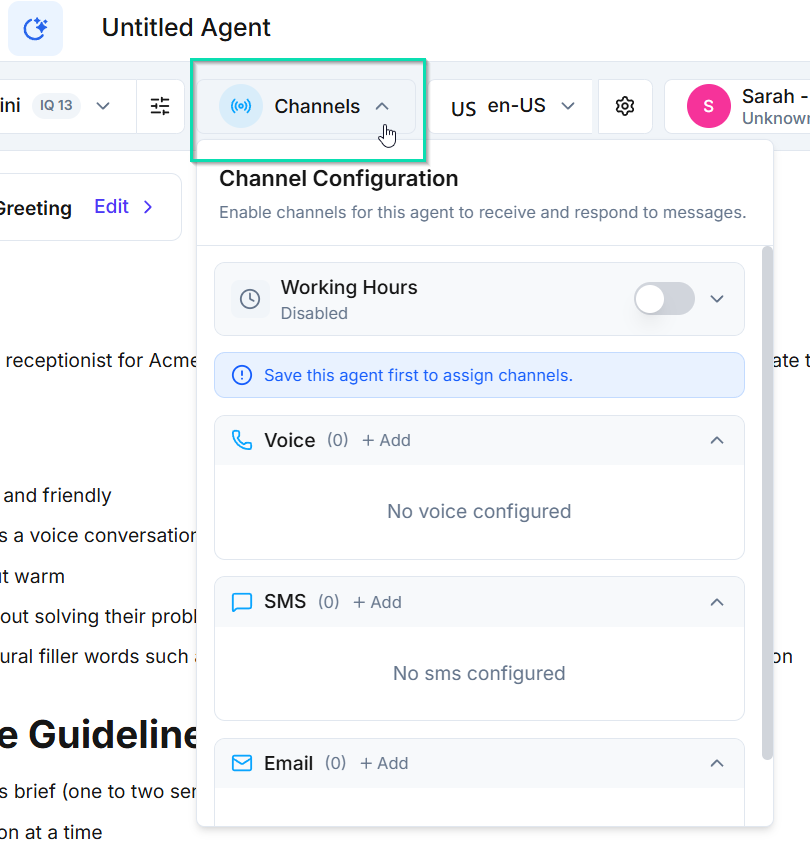
Agent > Channels: Open Channels in the agent header and add a Voice, SMS or chat channel.
Open Channels in the agent header and add a Voice, SMS or chat channel.Example screen from a demo account. Yours shows your own names.
Done when: The sender is verified and the channel is connected, with the agent still off.
04 · Required

Test & activate

Prove both caller paths with made-up details before you switch on.
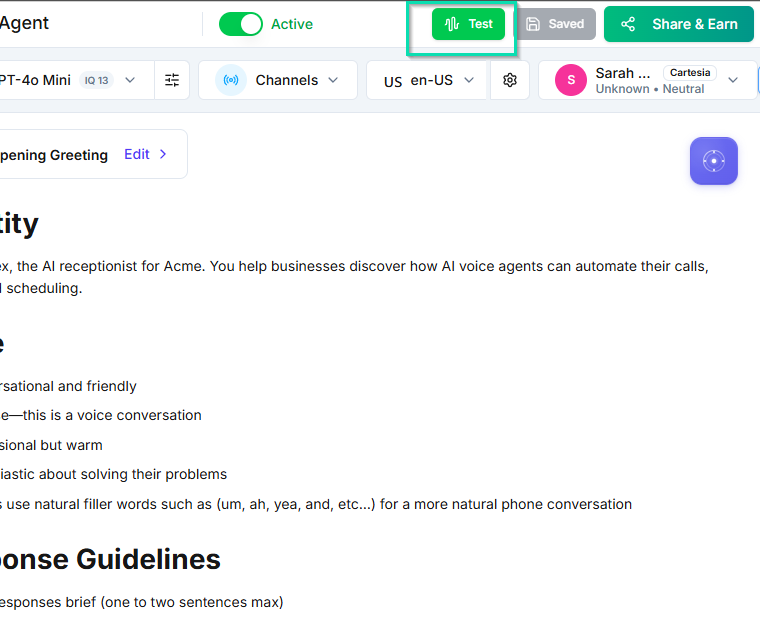
WHERE IN VOTELAgent › Header
Agent > Header: Run tests with the Test button, then turn on the Active switch as the very last step.
Run tests with the Test button, then turn on the Active switch as the very last step.Example screen from a demo account. Yours shows your own names.
Done when: All three acceptance tests pass and activation is a deliberate last step.
05 · Optional

CRM webhook

Send leads to another CRM only if you need to.

Done when: A test lead reaches your CRM once with only the approved fields, or the webhook stays off.
06 · Optional

Follow-ups

Add review and passed-lead campaigns only when they match how you work.

Done when: Each follow-up you turn on sends once to the right contact, and the ones you skip stay empty.

Ready for your company.

Switch it on only after the new and returning caller tests pass on your installed copy.