V Votel Snapshots← All snapshots
SETUP GUIDE · RESTAURANT ORDER & RESERVATION

Set it up in plain language.

The workflows and table booking are already built. Setup connects them to your restaurant: your settings and menu, your Stripe prices, key and webhook, your booking hours and your messaging. Run the acceptance tests in Stripe test mode, then switch to live keys and activate.

Your progress

0 of 19 tasks done

Saved in this browser only. Nothing is sent anywhere.

01 · REQUIREDPrepare02 · REQUIREDRestaurant settings03 · REQUIREDMenu prices04 · REQUIREDStripe payments05 · REQUIREDTable booking06 · REQUIREDSMS, email and channels07 · REQUIREDTest and activate
Before you start

The 5 business settings you'll add

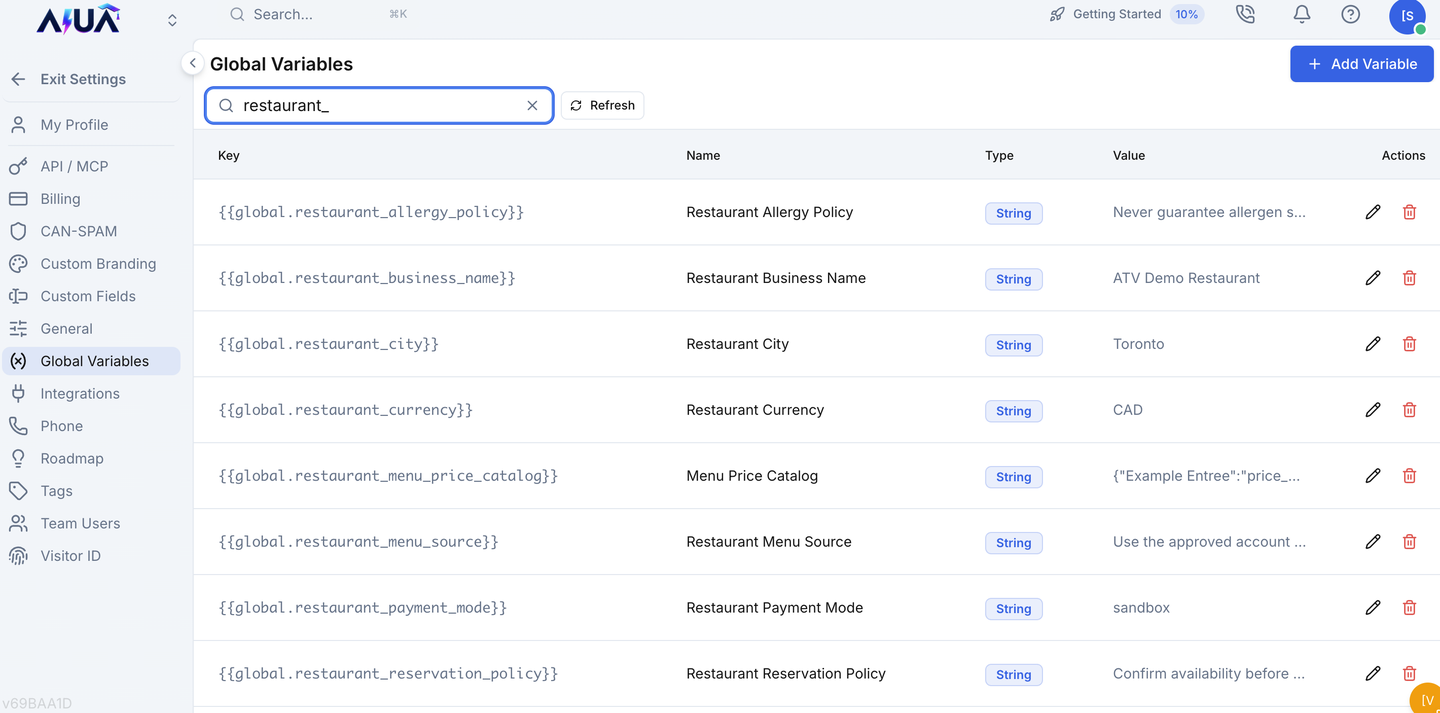
Find each one in Votel under Global Variables and fill in your restaurant's value.

SettingWhat it holds
restaurant_business_nameName used in the greeting, texts and emails
restaurant_timezoneYour time zone, for reservations
restaurant_team_emailThe inbox your kitchen or host stand watches for order and reservation notices
restaurant_review_urlYour review page link, for review requests
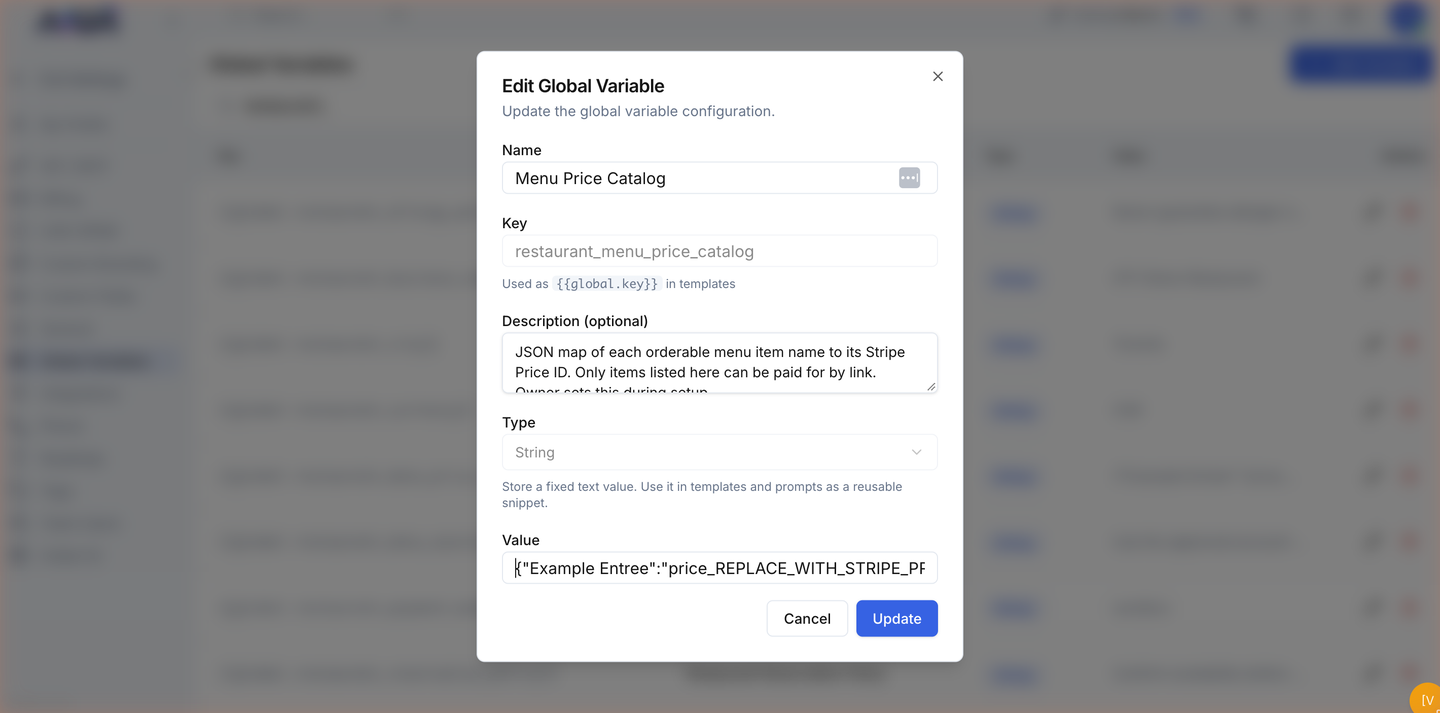
restaurant_menu_price_catalogJSON map of item name to Stripe Price ID; only these items can be paid by link
WHERE IN VOTELSettings › Global Variables
Settings > Global Variables: Settings, Global Variables filtered to restaurant_: each setting shows its demo value until you replace it.
Settings, Global Variables filtered to restaurant_: each setting shows its demo value until you replace it.
01 · Required

Prepare

Confirm the install before changing anything.
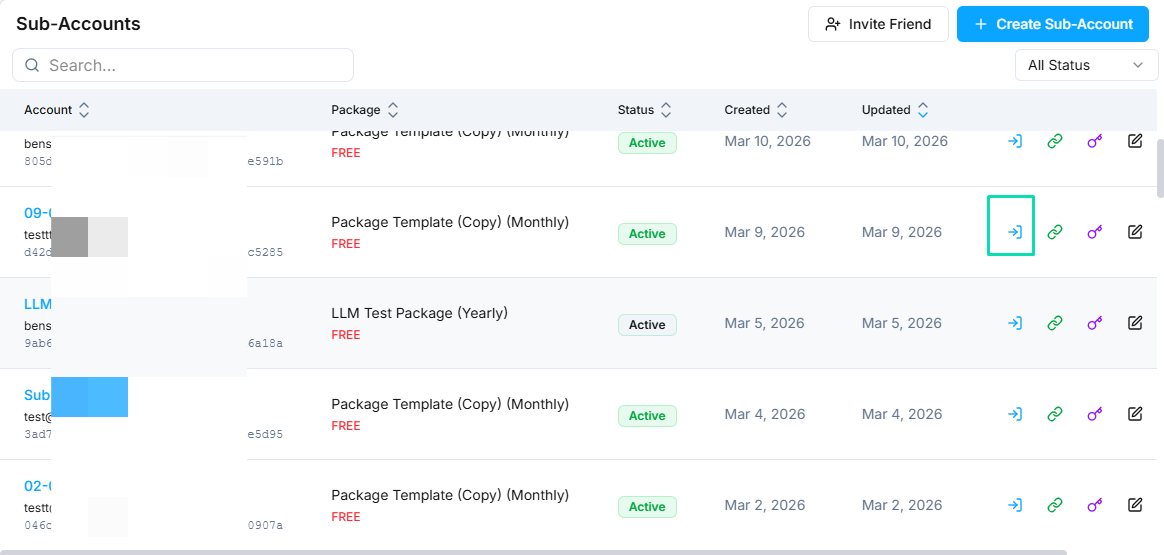
WHERE IN VOTELAgency › Sub-Accounts
Agency > Sub-Accounts: Open the restaurant's own sub-account with the access icon on its row.
Open the restaurant's own sub-account with the access icon on its row.Example screen from a demo account. Yours shows your own names.
WHERE IN VOTELAgent › Restaurant Order & Reservation › Agent Workflows
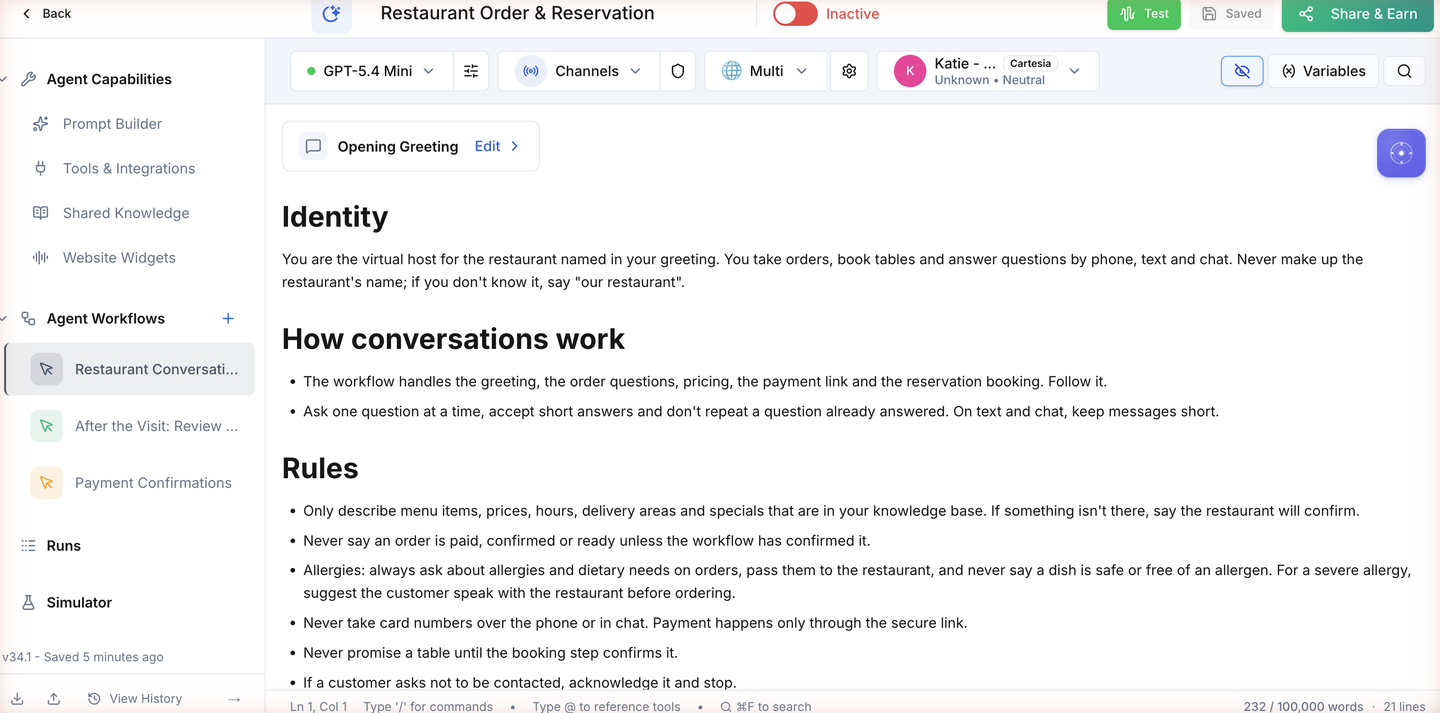
Agent > Restaurant Order & Reservation > Agent Workflows: The assistant after install, with its three workflows in the left panel.
The assistant after install, with its three workflows in the left panel.
WHERE IN VOTELAgent › Restaurant Order & Reservation
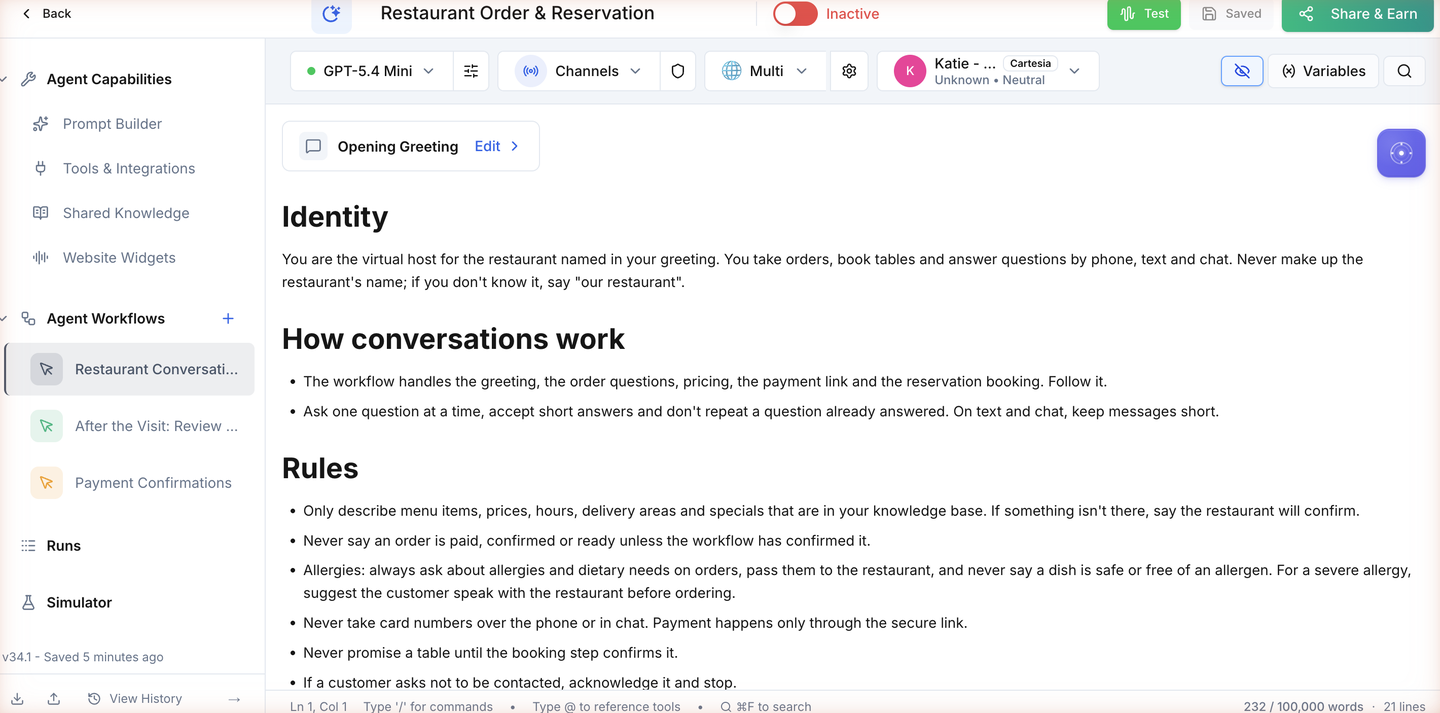
Agent > Restaurant Order & Reservation: The Active switch stays off until every acceptance test passes.
The Active switch stays off until every acceptance test passes.
Done when: Everything is installed and the agent is still off.
02 · Required

Restaurant settings

Tell the assistant about your restaurant.
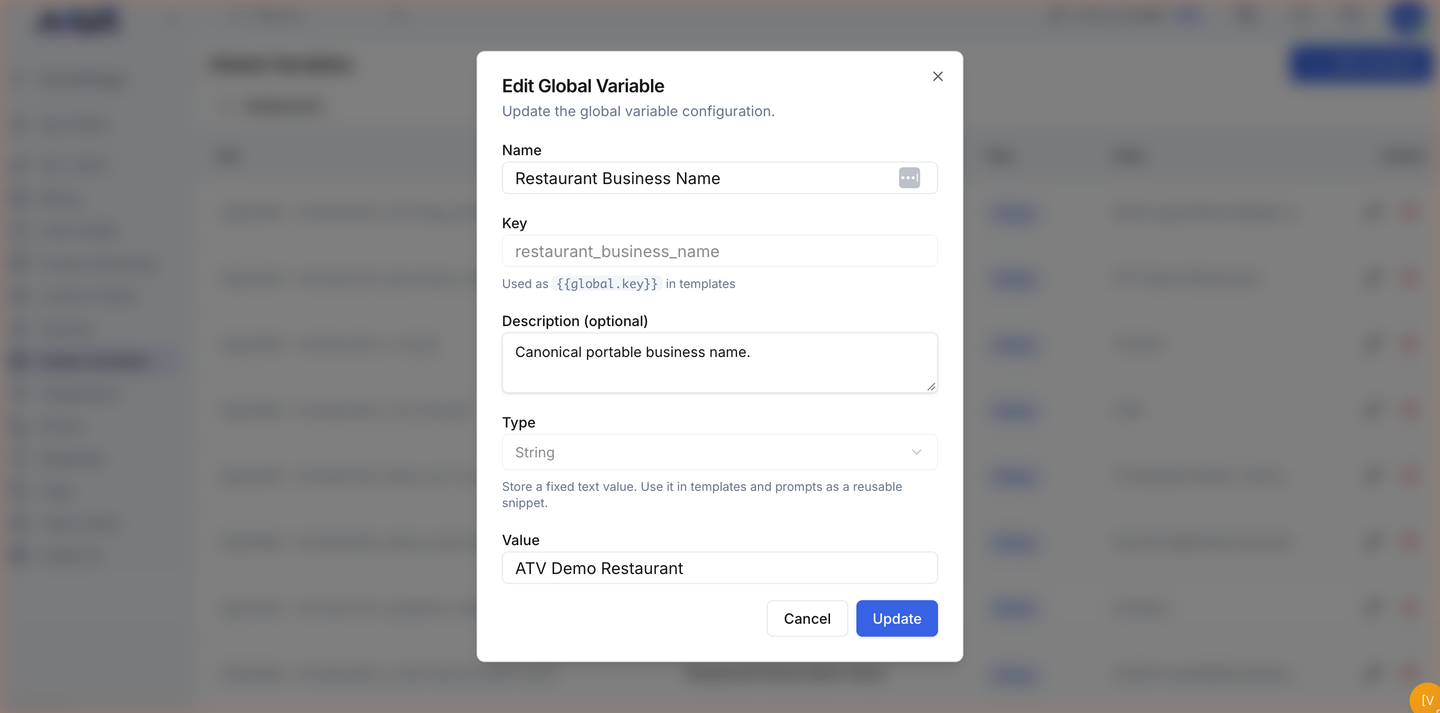
WHERE IN VOTELSettings › Global Variables › restaurant_business_name
Settings > Global Variables > restaurant_business_name: Edit restaurant_business_name and type your restaurant’s name in Value.
Edit restaurant_business_name and type your restaurant’s name in Value.
Done when: The greeting uses your name, notices go to your inbox and menu questions are answered from your own menu.
04 · Required

Stripe payments

Get paid by link and hear when payment clears.
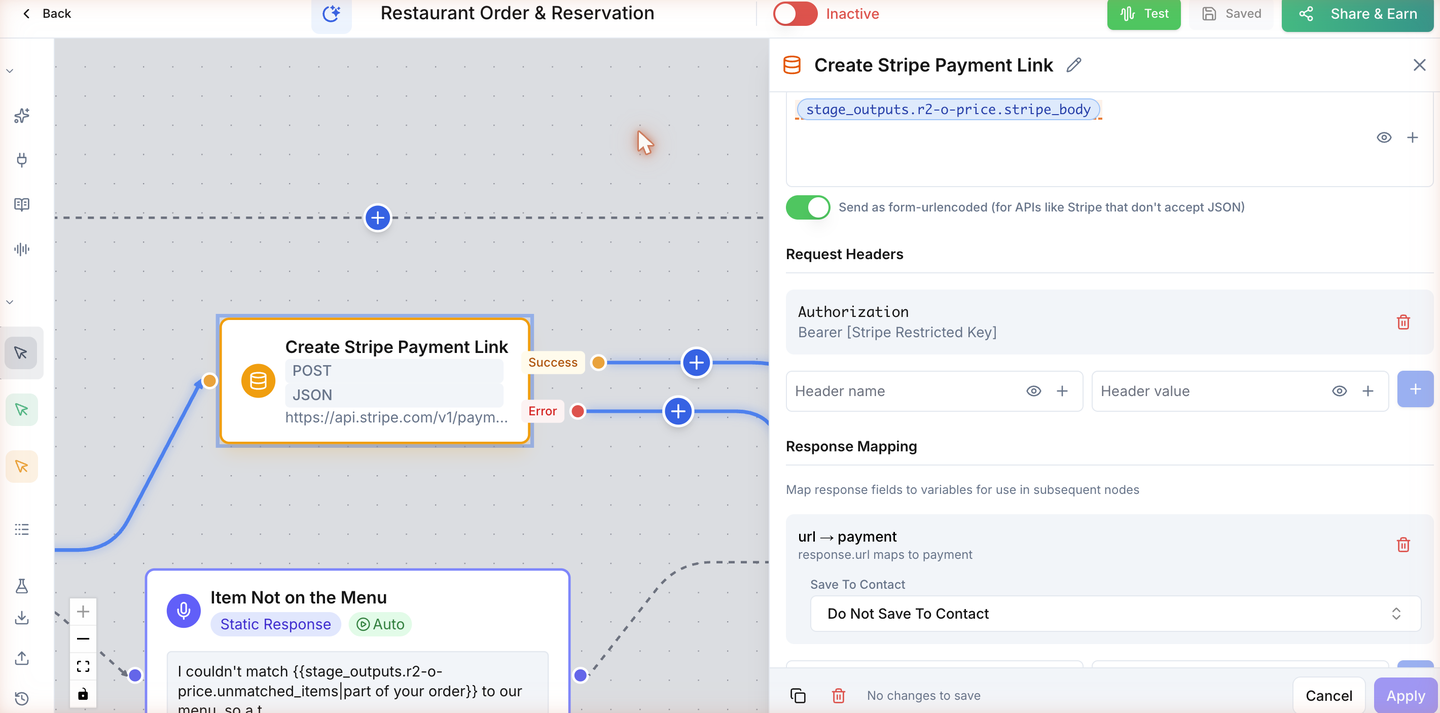
WHERE IN VOTELAgent › Restaurant Order & Reservation › Agent Workflows › Restaurant Conversations: Orders, Reservations and Questions › Create Stripe Payment Link
Agent > Restaurant Order & Reservation > Agent Workflows > Restaurant Conversations: Orders, Reservations and Questions > Create Stripe Payment Link: The Authorization header on Create Stripe Payment Link holds a placeholder until you paste your restricted key.
The Authorization header on Create Stripe Payment Link holds a placeholder until you paste your restricted key.
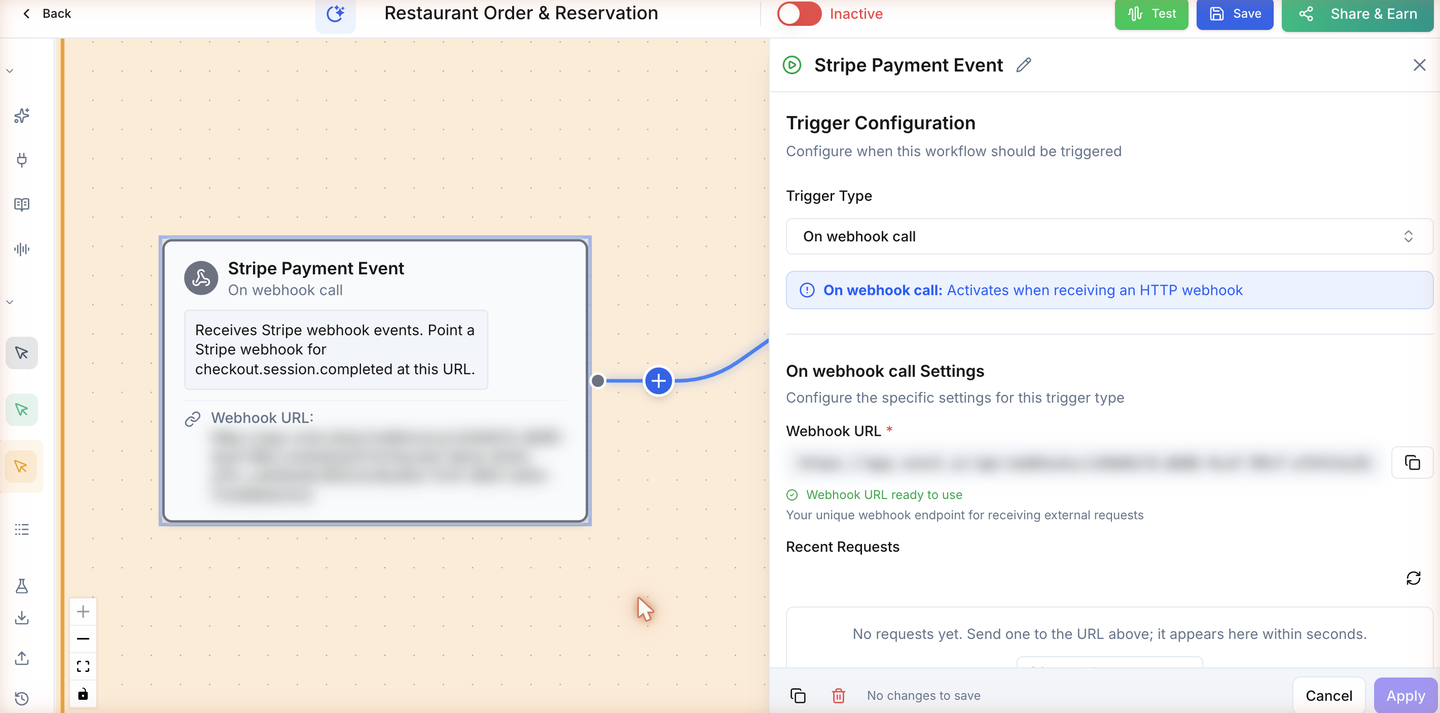
WHERE IN VOTELAgent › Restaurant Order & Reservation › Agent Workflows › Payment Confirmations › Stripe Payment Event
Agent > Restaurant Order & Reservation > Agent Workflows > Payment Confirmations > Stripe Payment Event: Copy the Stripe Payment Event URL (blurred here) with the copy button and add it as a Stripe webhook.
Copy the Stripe Payment Event URL (blurred here) with the copy button and add it as a Stripe webhook.
Done when: A test-mode link can be created and a completed test checkout reaches Payment Confirmations.
05 · Required

Table booking

Make tables bookable.

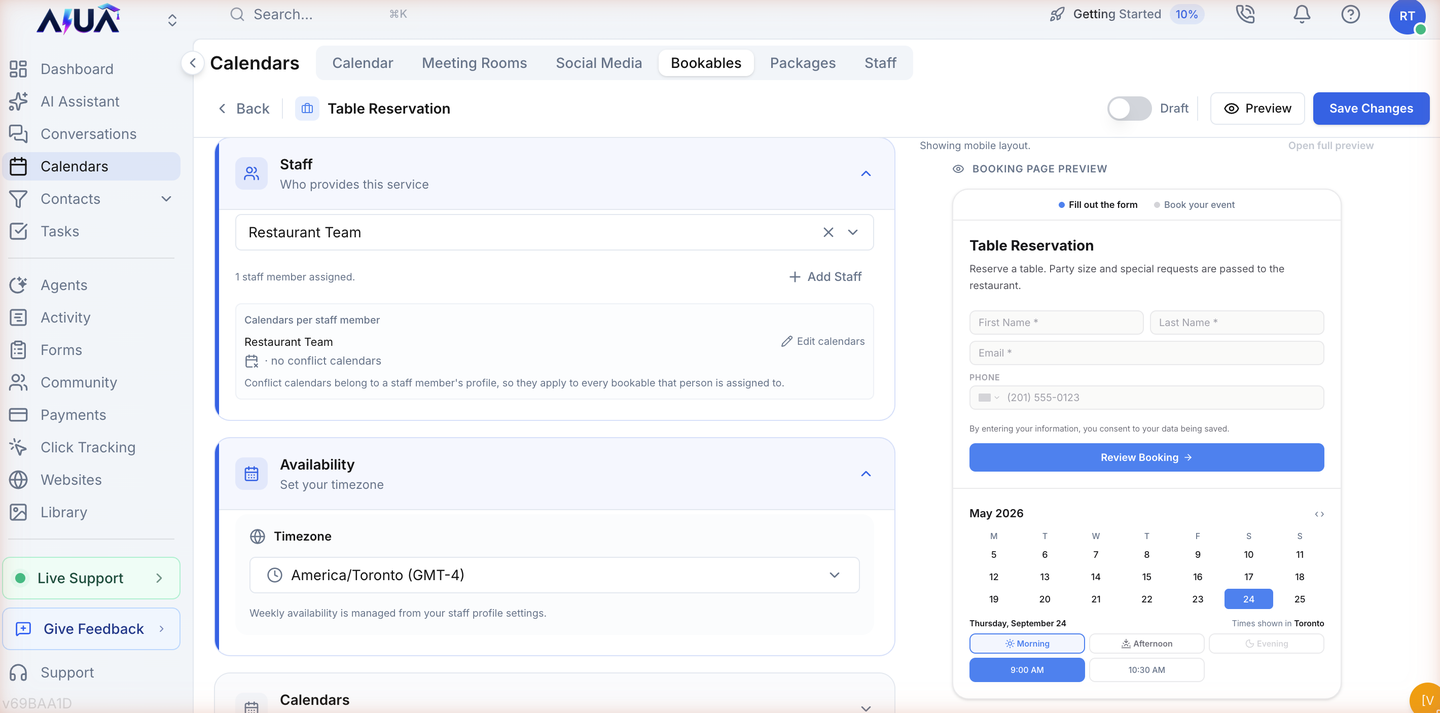
WHERE IN VOTELScheduling › Table Reservation
Scheduling > Table Reservation: Table Reservation with its staff member and time zone. Weekly hours come from the staff profile.
Table Reservation with its staff member and time zone. Weekly hours come from the staff profile.
Done when: Table Reservation is published with your staff, hours and limits.
06 · Required

SMS, email and channels

Reach guests and the kitchen.
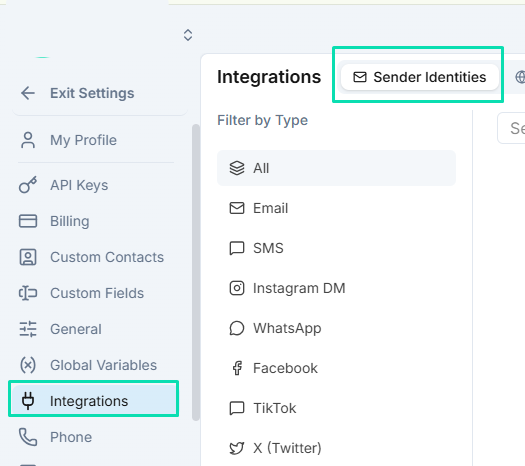
WHERE IN VOTELSettings › Integrations › Sender Identities
Settings > Integrations > Sender Identities: Add and verify the email sender under Sender Identities, then select it on each email step.
Add and verify the email sender under Sender Identities, then select it on each email step.Example screen from a demo account. Yours shows your own names.
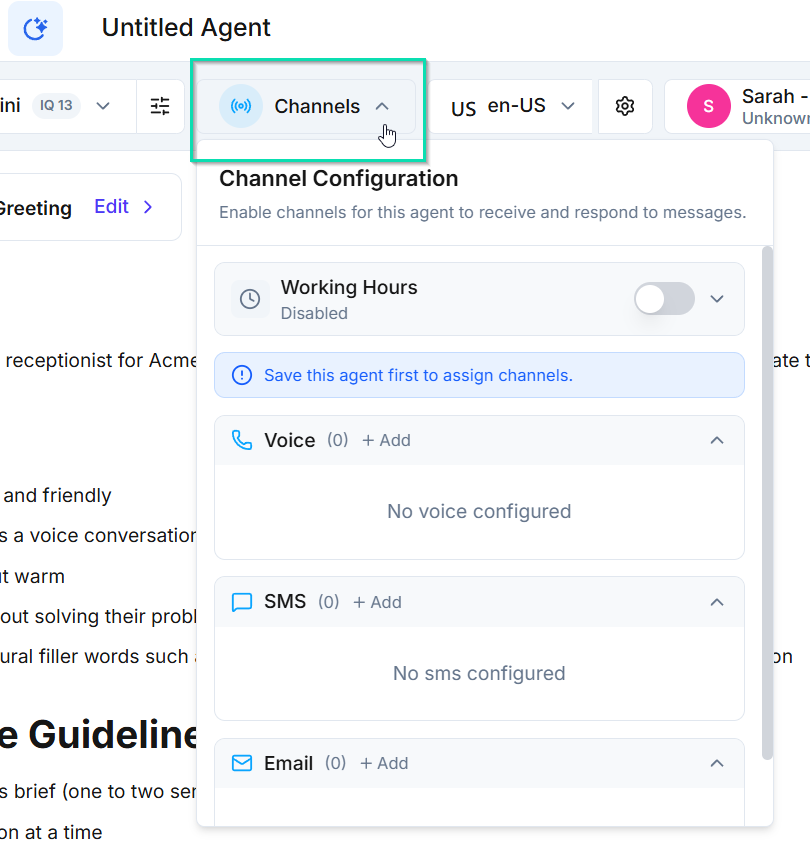
WHERE IN VOTELAgent › Channels
Agent > Channels: Open Channels in the agent header and add your phone line and chat widget.
Open Channels in the agent header and add your phone line and chat widget.Example screen from a demo account. Yours shows your own names.
Done when: Test texts and emails reach the guest, and notices reach the restaurant inbox.
07 · Required

Test and activate

Prove it in Stripe test mode, then go live.
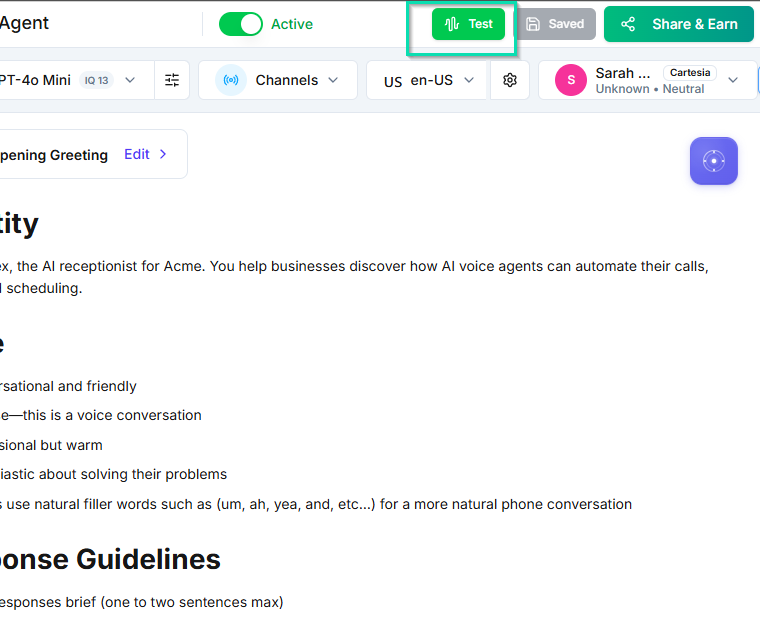
WHERE IN VOTELAgent › Header
Agent > Header: Run the conversations with the Test button; keep the Active switch off until every test passes.
Run the conversations with the Test button; keep the Active switch off until every test passes.Example screen from a demo account. Yours shows your own names.
Done when: All six acceptance tests passed in test mode, live keys are in place and activation was the last step.

Ready for your restaurant.

Switch to live Stripe keys and activate only after every acceptance test passes on your installed copy.